You speak
Talk normally into a laptop or phone. No special microphone and no training session first.
For people with unclear speech
Illness and surgery can make speech hard for other people to follow, and almost impossible for phones and computers to follow. OwnVoice listens and turns Mandarin speech into text that anyone can read.
Free. Open source. Your voice never leaves your computer.
Talk normally into a laptop or phone. No special microphone and no training session first.
A speech model built for unclear speech turns what you said into Mandarin text, a phrase at a time.
The person you are talking to reads it on the screen, or on a projector in a bigger room.
This is one sentence from a real recording. Use the buttons to hear it get harder to understand, then read what ordinary speech recognition makes of it and what OwnVoice makes of it.
與地主做良性的溝通
“to communicate constructively with the landowner”
As it gets harder, the pitch flattens and the words stretch out. In Mandarin the pitch is what tells two words apart, so that is exactly the part that carries the meaning.
與地主做人心的構同。
The key word is lost. 溝通, meaning communicate, became 構同, which is not a word.
與地主做人性的溝通
The sentence is readable. One word is still wrong, so this is a real improvement rather than a perfect one.
Open the live demo, upload a Mandarin recording and get the OwnVoice transcript. It runs our model online on a free server, so it can take up to a minute. With the model running on your own computer, the same page also captions you live and simulates dysarthria on your own voice.
Press start, allow the microphone, and speak Mandarin. Pause between sentences. Each pause ends a phrase and the text appears below.
Your voice is sent to the model, turned into text, and discarded. It is never stored.
The same tool, used in very ordinary places.
Families stop guessing. Instead of asking someone to repeat themselves four times, the sentence is simply on the screen.
A patient can describe their own symptoms instead of relying on a relative to speak for them.
The browser extension captions whatever is playing in a tab, so an online consultation or a work meeting is readable live.
Banks, clinics and government offices can read a request rather than turning someone away.
Full screen mode puts the captions on a projector so a whole room can follow a speaker.
Therapists get a written record of what was understood, which is hard to judge by ear alone.
Use the website in a browser, or install the extension if you want to caption video calls and other tabs.
Allow the microphone once. Speak normally and pause between sentences. Each pause ends a phrase and sends it to be read.
Hand over the phone, turn the laptop around, or switch to full screen for a projector. Change the interface to Chinese whenever you like.
Plain numbers, measured on speakers the system had never heard before.
Being straight with you. These results were measured on recordings we degraded on purpose to imitate unclear speech, not yet on recordings from patients. It works, and we are honest that clinical testing is the next step rather than something already finished. Accuracy also varies from person to person, so try it before relying on it.
The website captions your own microphone. The extension also captions the audio of any browser tab, so a video call, an online class or a recorded meeting becomes readable while it plays. A web page cannot do that.
It is not in the Chrome Web Store yet, so it installs from a folder. That takes a minute and is completely normal for an extension you build yourself.
ownvoice-extension.chrome://extensions and turn on Developer mode, top right.ownvoice-extension folder.Your microphone, or the sound coming out of the tab you are on.
Switch the whole panel between English and 中文 at any time.
The extension shows the captions but does not contain the model, so the recogniser has to be running somewhere. That can be your own computer.
The extension covers calls on a computer. The app covers everywhere else: at work, at a service counter, at the doctor. Speak, and your words appear on your phone. One tap shows them in large text to the person in front of you.
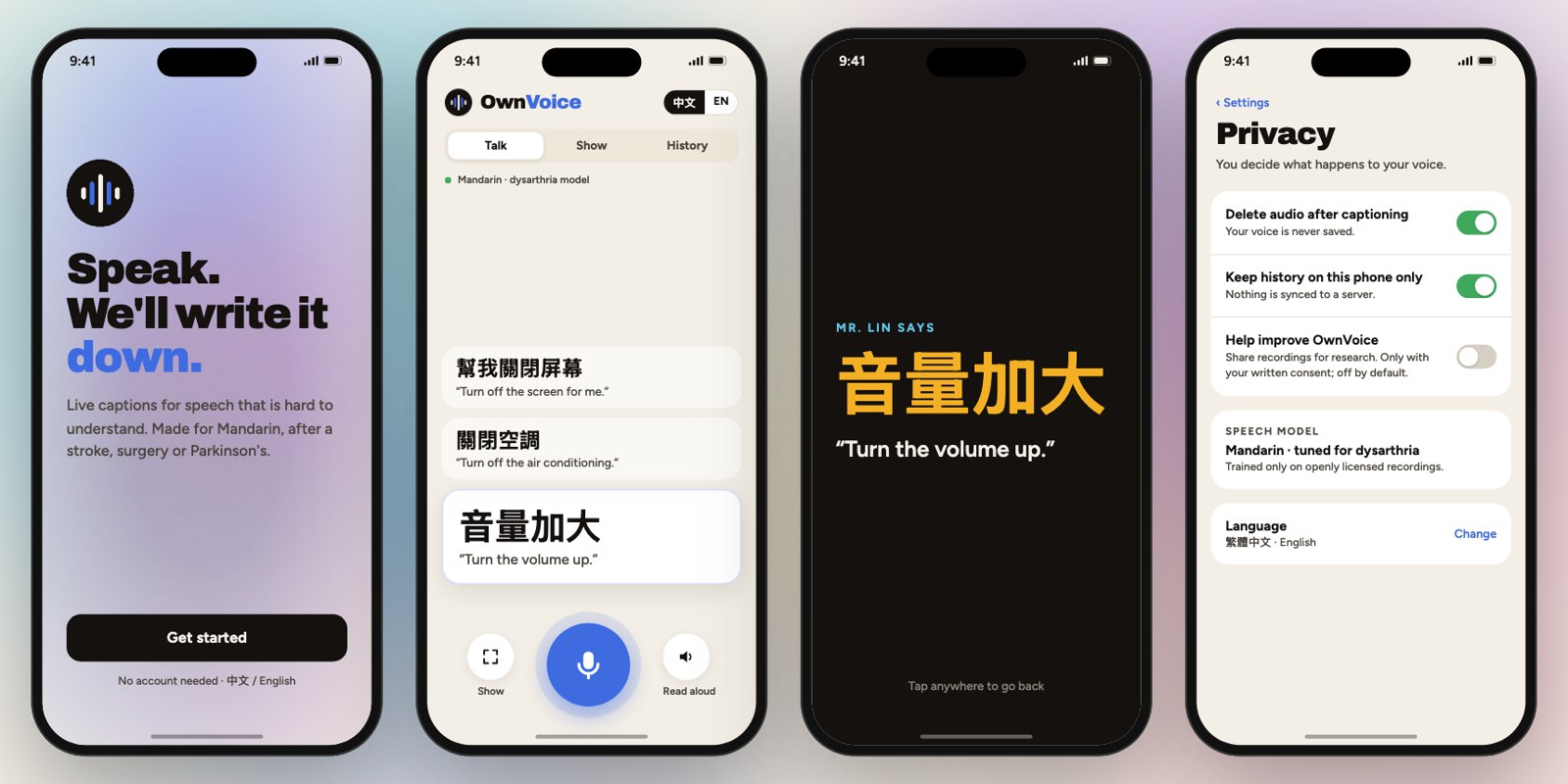
Live captions in Traditional Chinese, with an English line under each one.
One tap turns the last sentence into big text for a coworker, a pharmacist or a clerk.
Audio is deleted after captioning. History stays on the phone. Sharing recordings for research is off unless you agree.
We are building the app now. Until it ships, the website and the Chrome extension work today.
The speech is processed on your own computer and then discarded. Nothing is uploaded, nothing is stored, and there is no account to create. That is also why a clinic can try it without a data protection review first.
OwnVoice is free and open source. Use it, read how it works, or build on it.
Mandarin today. Taiwanese Hokkien and Cantonese are next.